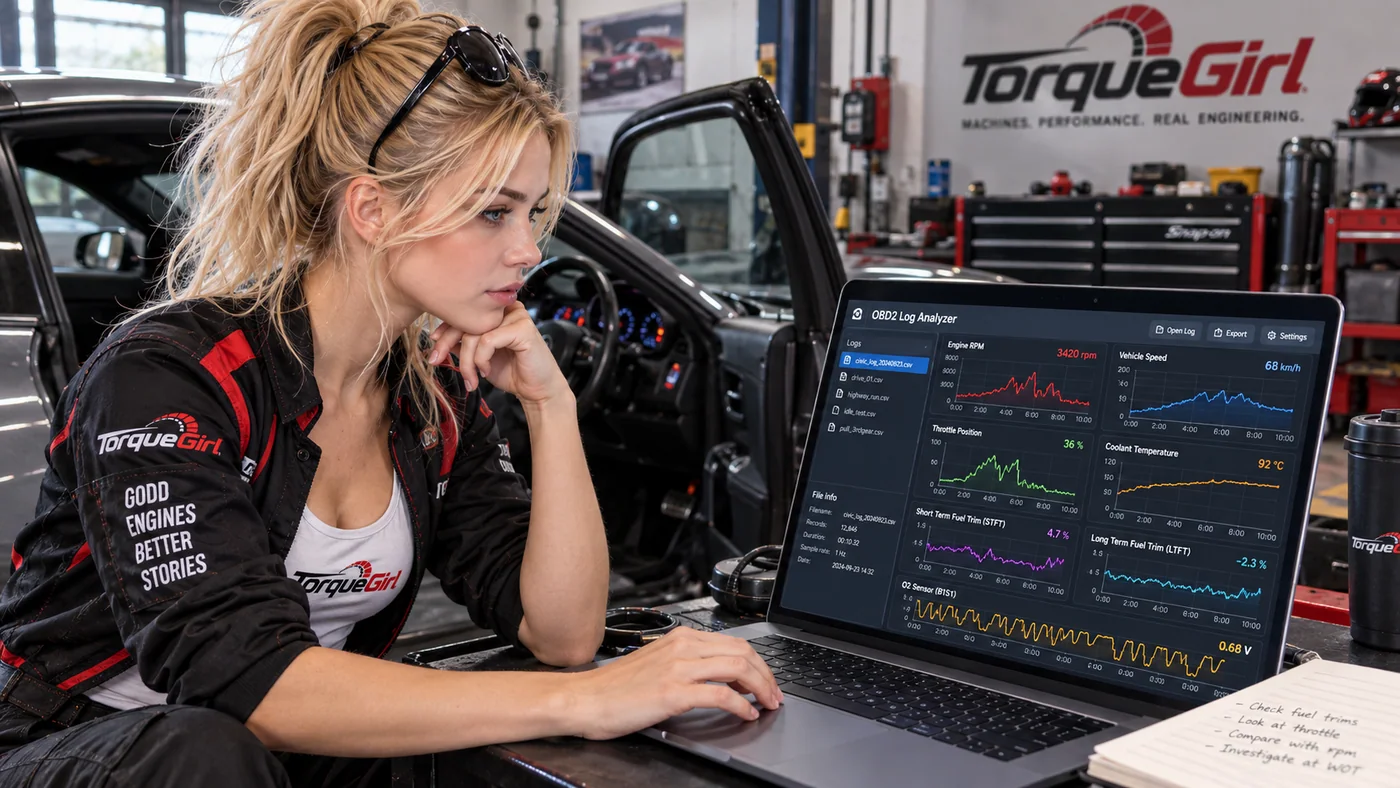
You do not need every available sensor or an aggressive road test. You need enough relevant data to see what happened before, during and after the event you want to understand.
New to this? Start with how to analyze OBD2 live data and logs. If your tool only reads codes, check scanner versus code reader capabilities: live display, recording and text export are separate features. Confirm each in your exact tool's documentation.
Set up while parked
- Connect and configure the scanner, choose channels, secure cables away from pedals and controls, and verify that recording works before moving.
- Do not operate a phone, scanner or computer while driving. Use a passenger to operate it, or securely mounted, unattended logging configured while parked. Stop safely before changing settings or checking a file.
- A stationary idle recording may answer your question. Run an engine only with suitable ventilation; never in an enclosed garage. Follow the vehicle and tool instructions for securing the vehicle.
- If a normal lawful drive is appropriate, let traffic and road conditions determine it. Do not perform hard pulls, sudden braking, deliberate swerves or other risky maneuvers to create a graph. Leave tests requiring controlled conditions to a qualified technician.
Choose a small channel set
A PID (parameter ID) identifies a reported parameter. Select supported channels that answer one question, plus the context needed to interpret them. A missing or unsupported PID is not evidence of a faulty sensor. Confirm labels, units and bank/sensor numbers in the tool and vehicle information.
RPM, vehicle speed, coolant temperature and a clearly identified throttle or accelerator channel, where supported.
Add relevant STFT/LTFT banks and supported oxygen or air-fuel channels. Keep banks distinct; a trim value alone does not name a failed part.
Add supported airflow, manifold pressure or calculated load if relevant. Keep absolute pressure distinct from boost or gauge pressure.
Save relevant codes and freeze-frame information separately. Do not clear codes or reset learned values just to make a cleaner baseline.
Try a short parked capture, export it, and inspect its headers and time column. This checks the whole path before you invest in a longer recording.
Record the conditions
Keep a separate note with the question, date, engine state, selected channels, units, app/tool version and any recent change. Add ambient conditions, accessory load or road grade when relevant. For a later comparison, aim for similar safe conditions and record what differed.
- Cold or warming up: note how long the engine was off and the starting coolant reading. If cold behavior is the question, capture from startup where the tool permits. Do not call a recently stopped engine cold.
- Warm idle: record the observed temperature, accessory use and a settled interval. Compare with vehicle-specific warm-up guidance; one coolant value does not prove every system is fully warm.
- Steady cruise: if it occurs safely during an ordinary drive, note speed, gear where known, grade and changing load. A brief stable region is easier to compare than an entire mixed drive.
- Acceleration and deceleration: capture ordinary transitions only when they occur safely. Note the context around them; throttle position, fuel control and sensor refresh can differ from steady operation.
You do not need all four conditions in one file. As a planning example, a few minutes of settled idle may suit an idle question; a warm-up question needs the relevant warm-up period. Include a stable lead-in and time after an event, then stop once the question is captured. There is no universal duration that guarantees a useful result. If nothing happened, record that too.
Understand the update rate
Cadence is the spacing between samples. More selected channels can reduce how often each is refreshed. A slow temperature trend and a brief throttle transition have different timing needs; test your selected set and inspect the actual sample spacing rather than assuming a requested rate was achieved.
A fixed file-writing interval can repeat the latest value before a fresh reply arrives. A row timestamp does not guarantee that every channel was measured simultaneously. Gaps, repeated or stale readings and uneven polling can change how a relationship looks. Do not interpolate extra readings to make the data appear faster.
OBDLink's logging documentation describes channel-count and fixed-interval tradeoffs. Treat that as an example of why settings matter, not a promise that every app works the same way.
Keep time and units intact
- Keep the original time column, row order and precision. Elapsed seconds and milliseconds need an explicit unit; a bare numeric time column needs a deliberate choice in import preview.
- For full dates, prefer an exporter-supported ISO date/time with its UTC offset or Z marker. Note the original timezone separately if absent. TorqueGirl interprets offset-free ISO values as UTC, not the browser's local timezone; do not silently relabel local time as UTC.
- Clock-only HH:MM:SS values lack a date and timezone. Note the session date and any midnight crossing separately; inspect the preview for time-order issues before using it.
- Keep units such as RPM, km/h or mph, °C or °F, %, kPa or psi and g/s. Header units in parentheses or brackets help mapping. If absent, consult the exporter and choose the known unit in preview; do not guess from the size of a reading.
Export through your software
Stop and save while parked, then use the tool's documented export or save-file workflow. Choose CSV, or TSV if your software supports it. CSV commonly uses commas; locale settings may use semicolons. TSV uses tabs. Changing a filename extension does not convert a proprietary or binary recording into text.
Menus and layouts vary. Some apps keep a playback file separately from a CSV export, or select logging channels separately from dashboard gauges. Verify the exported file actually contains the intended channels. Manufacturer documentation establishes those app features; it does not establish compatibility of every resulting file with TorqueGirl.
TorqueGirl expects one header record, a consistent number of columns, a usable time column and sample rows. It supports comma, semicolon and tab delimiters in text CSV/TSV/TXT files. Metadata preambles, separate units rows and proprietary binary files are not supported. Prefer an appropriate exporter option; if a documented conversion is needed, work on a copy, record exactly what changed and retain the source.
Preserve the original evidence
Keep both the original recording and the untouched export. Avoid opening and resaving the only copy in a spreadsheet: automatic date conversion, rounding or locale changes can alter it. Inspect a copy in a plain-text viewer when checking the first rows.
- Do not delete inconvenient spikes, gaps or missing readings, sort rows by sensor value, fill blanks with zero, invent samples or manually resample/interpolate.
- Do not round values, merge banks, rename ambiguous signals to a different PID, or silently convert units and timestamps before import.
- Use TorqueGirl's delimiter, time, PID and unit preview to review interpretation. Investigate warnings using the original; a plausible chart does not validate an incorrect mapping.
Review privacy before sharing
Exports can contain location, VINs, vehicle labels, precise trip times or identifying filenames. Disable unnecessary location logging before recording if your app permits it. Keep originals private; if you choose to share evidence elsewhere, make a separate redacted copy and document the redaction.
TorqueGirl analyzes your imported log locally in your browser without uploading it. Keep your own file backup: leaving or reloading the analyzer clears the in-memory log. Article sharing shares this guide's URL, and Share Tool shares the analyzer URL; neither attaches your log. Your scanner app's own cloud/export behavior is separate, so review its settings too.
I have a log. What next?
Choose the exported file, review the mapping, then analyze. Check data quality and timing before inspecting related channels in a useful region. Use the local observation notebook to record the observation, another possible explanation and a safe next verification or retest. Review any captured compact evidence before saving. Keep the original log separately: saved notes and JSON backups do not restore raw logs or the analysis session. A pattern is evidence to investigate, not an automatic diagnosis.