You connect an OBD2 scanner and the screen fills with numbers. Engine speed and coolant temperature are easy enough to picture. Then there is STFT, LTFT, oxygen-sensor data—and, in an exported log, thousands of samples. The point of analysis is to turn those readings into a timeline you can reason about.
A diagnostic trouble code (DTC) is one observation made by the vehicle’s diagnostic system. Live data adds another kind of evidence: it shows selected parameters as they change. Neither one automatically names a failed part. A useful habit is: Find patterns first. Diagnose second.
What is an OBD2 live-data log?
A live-data log is a recorded series of parameter values collected through a vehicle’s OBD2 system and a compatible scanner or interface. Each sample has a time, and may include values such as RPM, speed, coolant temperature, or fuel trim. Plot several channels against the same time axis and you can see how the vehicle’s reported behavior changes through a drive or test.
The scanner requests data the vehicle makes available; it is not necessarily receiving every possible sensor value continuously. Supported parameters, update rates, labels, and enhanced data vary by vehicle, model year, scanner, and application. A missing channel does not by itself mean a sensor or system is faulty.
What you need before you start
- An OBD2-equipped vehicle and a compatible scanner or interface.
- An app or scan tool that can display live data and, ideally, save a log or export a CSV file.
- A phone, laptop, or other device suited to reviewing the recording.
- A clear question to investigate, such as a symptom, a DTC, or a change you noticed while driving.
Check your tool’s instructions and vehicle compatibility first. If the test involves driving, set up recording before moving and have a passenger operate the device; the driver should focus on the road.
Need your first usable file? Follow How to Record and Export OBD2 Logs for safe setup, a focused channel set, time and unit preservation, and the export checks to make before import.
Step 1: Connect and record the conditions
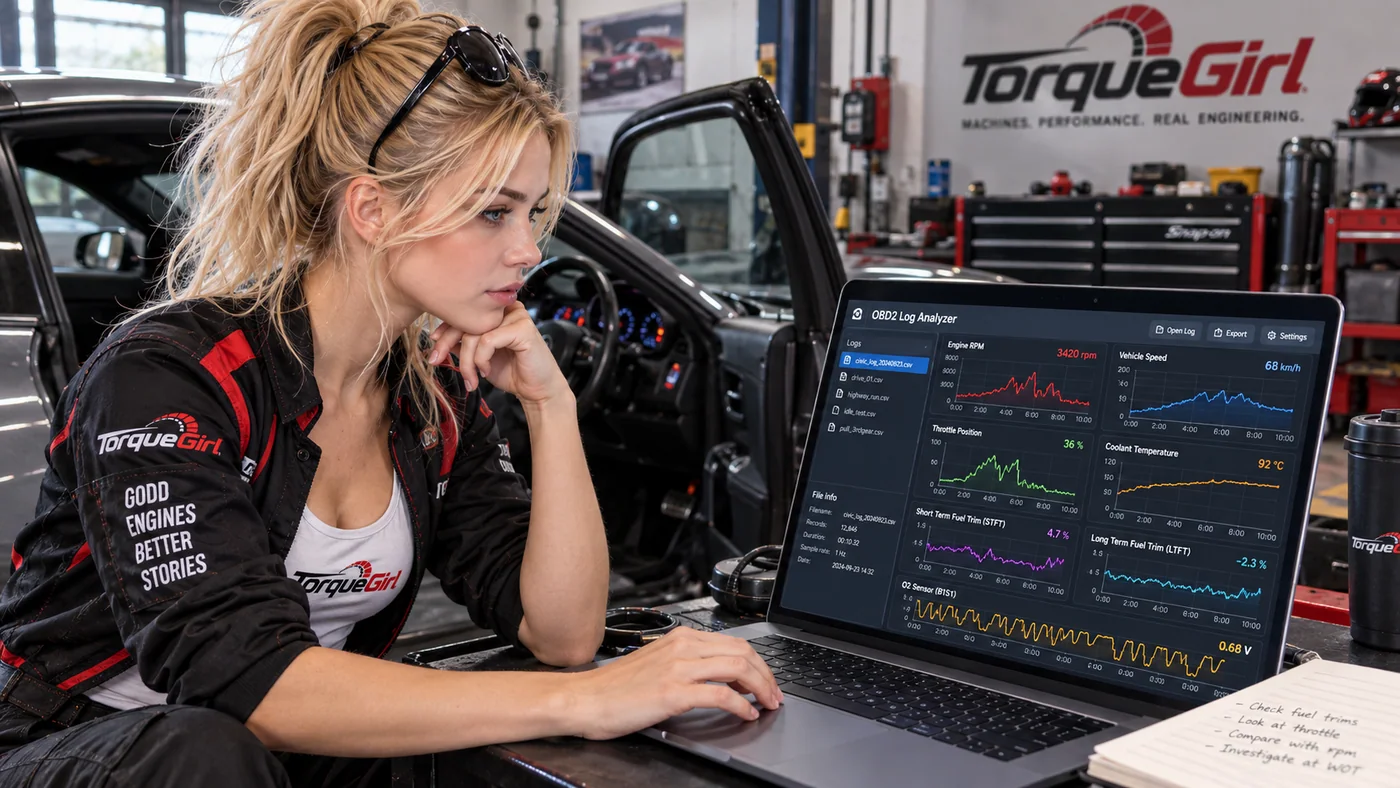
Think of the path as car → OBD2 port → scanner → diagnostic application → recorded log. The scanner requests the supported data through the vehicle’s diagnostic system, and the application organizes or saves the replies. What you can record depends on the vehicle and tool combination.
Before recording, write down the question and the conditions that may matter:
- Was the engine cold, warming up, or fully warm?
- Was the vehicle idling, cruising steadily, slowing down, or accelerating?
- How long did you record, and did the symptom happen during that period?
- Were there relevant DTCs, recent repairs, or unusual conditions worth noting?
Keep the first recording focused. Too many selected channels can sometimes reduce how often each one updates, depending on the scanner and vehicle. A short, repeatable capture with the channels relevant to your question may be easier to interpret than a long drive with every available PID selected.
Get to know the channels
A channel is one parameter in the log. These common examples provide context, but each reading is only one piece of evidence:
| Signal | What it describes | What it cannot prove alone |
|---|---|---|
| Engine RPM | Reported engine rotational speed, in revolutions per minute. | Whether the engine is producing expected power or why its speed changed. |
| Vehicle speed | Vehicle speed reported through the supported diagnostic data. | That a change in speed was caused by one particular engine or transmission component. |
| Throttle position | A reported throttle-related position or command; the exact channel name and meaning depend on the vehicle. | Driver demand in every situation, or a fault in the throttle system. |
| Coolant temperature | Reported engine coolant temperature, useful for understanding warm-up and operating context. | That the engine has reached every specified operating condition or that the cooling system is healthy. |
| STFT and LTFT | Short-term and longer-term fuel-control corrections reported by the engine controller. | A specific leak, sensor failure, or universal pass/fail result without vehicle-specific context. |
| O₂ / air-fuel data | Supported oxygen-sensor or air-fuel-related readings, which can reflect exhaust feedback and fuel-control behavior. | That one sensor is faulty, or a complete diagnosis of combustion and emissions performance. |
Names, units, scaling, bank numbers, and sensor behavior vary. Confirm what a channel means for your exact vehicle and scanner before comparing it with a specification.
Your imported log stays in your browser without uploading. Review the mapping and data quality before comparing operating regions. Keep your own original file; leaving or reloading the analyzer clears its in-memory log.
Step 2: Turn the log into something you can see
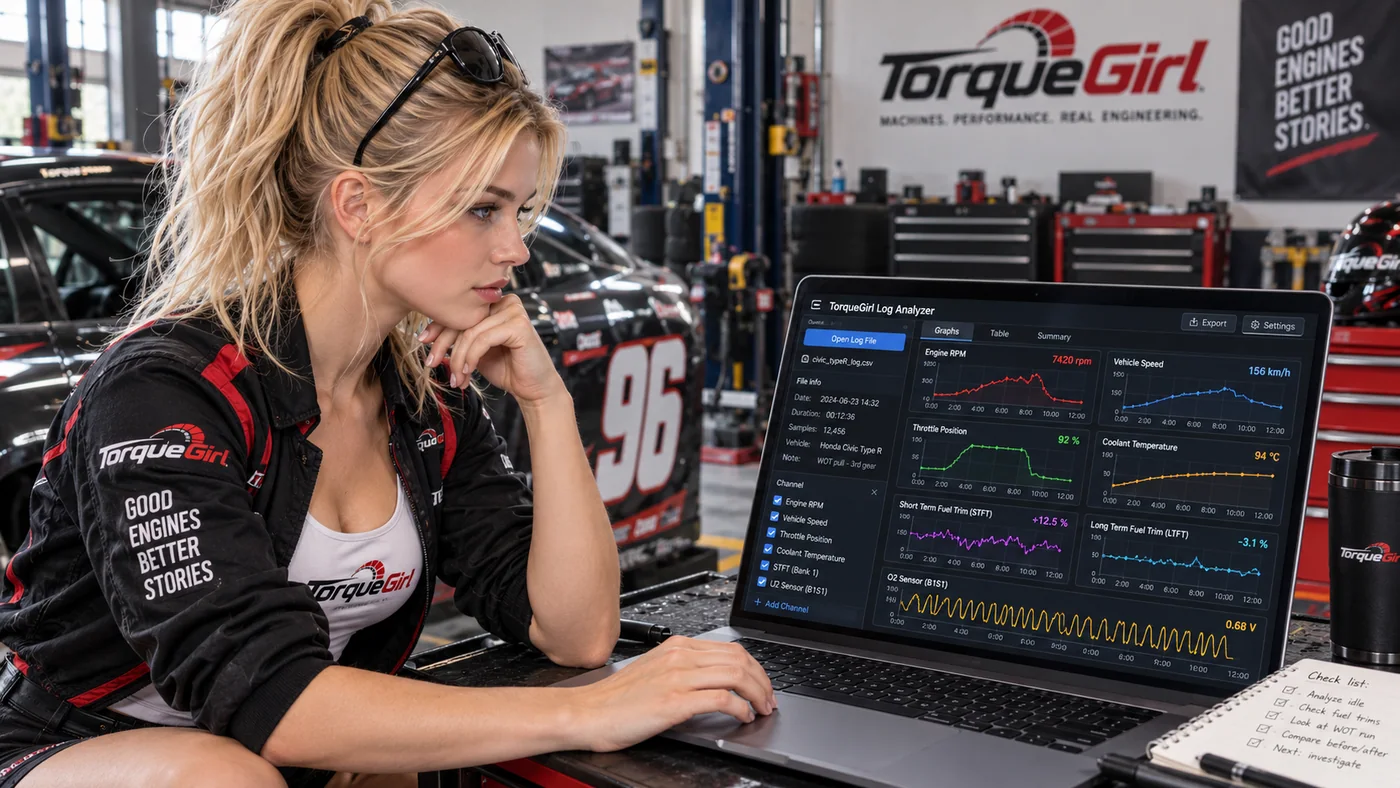
A table is useful for exact values, but thousands of rows make trends hard to spot. A time-series graph places time on the X-axis and a sensor value on the Y-axis. Peaks, plateaus, sudden changes, and repeating patterns become easier to see.
Put related channels on a shared time axis. If RPM, throttle, speed, and fuel-control data are synchronized, a cursor at one moment can show what each was reporting at that same point. Separate graphs with unrelated time scales can make events look connected when they were not.
Start with a few channels that fit your question. Check that the time range, units, and sample spacing make sense. If one graph looks unusual, zoom in and compare the rows around it; a chart can clarify a pattern, but it cannot fix missing, delayed, or mislabelled data.
Step 3: Compare related signals
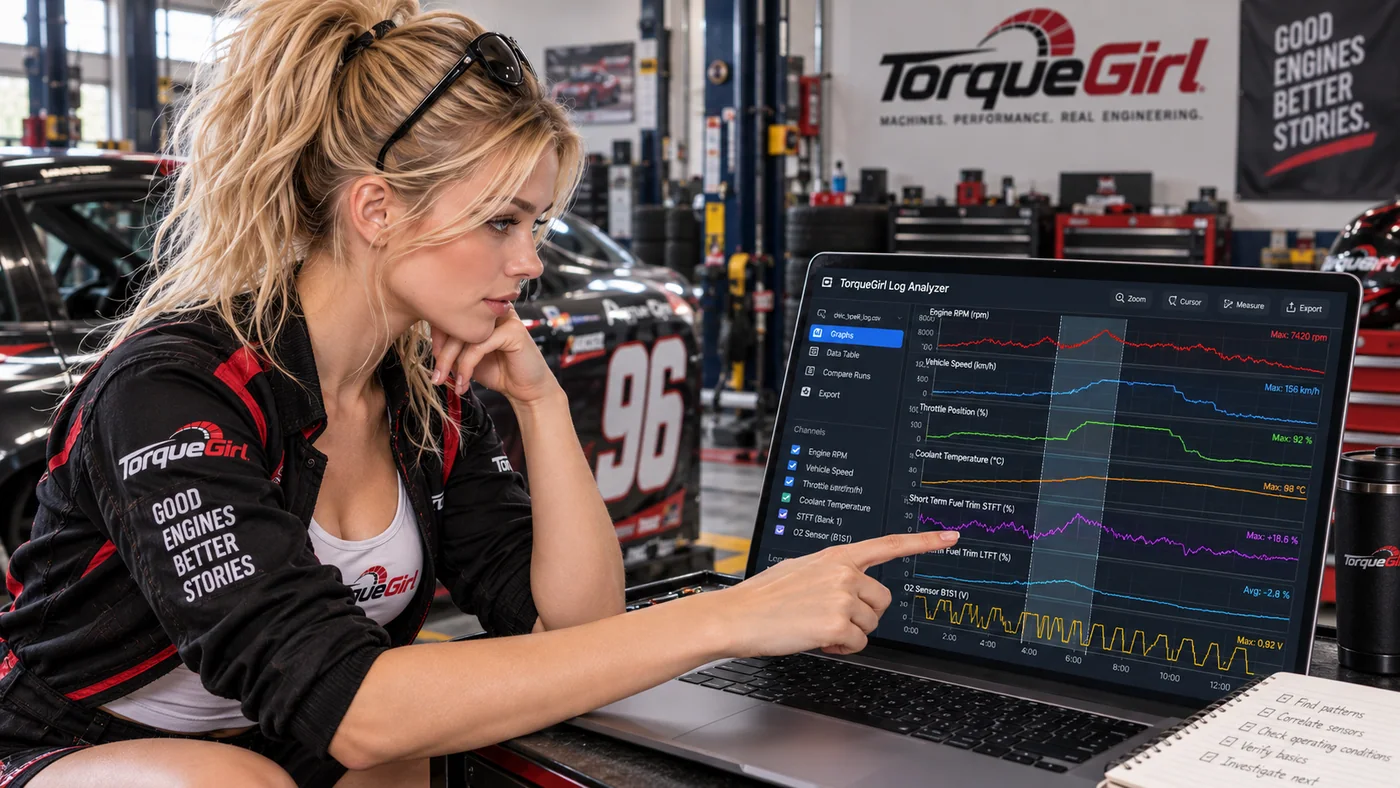
Imagine a section where the throttle-related channel rises, RPM follows, and vehicle speed increases a little later. At around the same time, STFT changes and an oxygen or air-fuel channel responds. That cluster gives you a region of the recording to inspect more closely.
The lesson is not “component X is broken.” Several signals changed near the same time, so the event is worth investigating. Correlation shows that readings moved together; it does not prove that one caused another. Sampling delay, changing load, temperature, control strategy, and the test itself can all affect what you see.
STFT and LTFT, in plain English
Short-Term Fuel Trim (STFT) describes the engine controller’s quicker fuel correction in response to feedback under the conditions where that control is active. Long-Term Fuel Trim (LTFT) is a more gradual learned correction. In broad terms, the values help show how the controller is adjusting fueling—not the condition of one specific part.
Positive and negative values describe the direction of a correction in the scanner’s display, but interpretation depends on the vehicle, operating state, bank, sensor strategy, and how the tool labels the data. A momentary change during a throttle transition is not equivalent to a sustained pattern in a stable operating condition. Avoid treating one universal percentage as a guaranteed diagnosis threshold.
For either trim, ask: What was the engine doing? Was it warm? Was the reading stable or changing? Did the other bank or related channels behave similarly? Then compare with vehicle-specific service information and an appropriate test.
Why one sensor rarely tells the whole story
Context changes the question. A coolant value during warm-up is not the same observation as that value after a long drive. A fuel-trim sample at idle may not tell the same story as a sample under load. Even a sharp spike can be a brief transition, a communication gap, or a real event—the graph alone may not distinguish them.
Use the log to find where to look, then bring in the rest of the evidence: the driver’s symptom, stored or pending codes, freeze-frame information, vehicle-specific specifications, inspection, and tests. A code is a useful clue, too; our guides explain how to read OBD2 codes and what an OBD2 scanner can show.
Keep an observation for the next test
In the analyzer, the first-use guide leads from mapping and data quality to a timeline or driving phase. The local observation notebook lets you record what you saw, another possible explanation and a safe next test. You can explicitly capture compact evidence, review it and then save; manual notes also work without a loaded log.
Saved notes stay on this site in this browser. They do not save raw logs or restore an analysis session. Download a JSON backup for your own safekeeping, preserve the original log separately and reimport it when you retest. Observations help you plan verification; they do not establish a diagnosis.
Common beginner mistakes
- Calling a part faulty based on one sensor value.
- Ignoring whether the engine was cold, warm, idling, or under load.
- Comparing channels recorded at different timestamps or with different sample rates.
- Treating every spike or gap as a mechanical fault.
- Replacing parts from a graph without confirming the cause with a suitable test.
- Assuming every vehicle exposes the same PIDs, labels, or limits.
A more useful diagnostic workflow
- Write down the symptom or DTC and define the question.
- Check the scanner, supported channels, and vehicle-specific information.
- Record a focused log while noting the operating conditions.
- Visualize related channels on a shared timeline.
- Mark an event and compare the channels around that time.
- Form a hypothesis that could explain the pattern.
- Verify it with appropriate inspection or diagnostic tests before repairing.
For a little more background before your next recording, compare an OBD2 scanner with a code reader. The best log is not the one with the most numbers; it is the one that helps you ask a better next question.